Create Error-Free Content with Grammarly | Expert Writer Guide
I have been writing professionally for over a decade. In that time, I have worked on blog posts, whitepapers, ad copy, email campaigns, and long-form guides. And no matter how experienced I get, one thing never changes: errors still slip through.
That is not a failure of skill. It is just how writing works. When you are deep in the process, your brain reads what it meant to say, not what is actually on the page.
Grammarly changed that for me. It is the one tool I use every single day, across every piece of content I produce. It does not replace my thinking. It protects my work.
In this article, I am going to walk you through exactly how I use Grammarly to produce clean, polished, error-free content. I will cover my full workflow, the features I rely on most, and the honest limitations I have found along the way.
Why Error-Free Writing Matters
Readers trust well-written content. They do not always consciously notice good writing. But they absolutely notice bad writing.
A single typo in a headline can make a reader doubt the credibility of everything that follows. A grammatical error in a client email can shift how professional you appear. And on websites, poor writing signals to search engines and human readers alike that the content may not be reliable.
I learned this the hard way early in my career. A major client pointed out three errors in a report I had spent 12 hours writing. They never said it directly, but the tone of the relationship changed after that. That was the turning point where I got serious about using a grammar tool consistently.
Error-free content is not just about being correct. It is about respecting your reader’s time and protecting your reputation.
What Grammarly Actually Does
Grammarly is an AI-powered writing assistant. It checks your writing in real time and gives you suggestions across several categories.
Here is a quick breakdown of what it covers:
- Spelling and typos: Catches words that are wrong or mistyped
- Grammar: Flags errors like incorrect verb tenses, subject-verb disagreements, and misused words
- Punctuation: Points out missing or extra commas, incorrect apostrophes, and more
- Clarity: Suggests simpler or more direct ways to phrase sentences
- Engagement: Flags writing that may feel flat or repetitive
- Tone: Shows how your writing is likely to come across to readers
- Plagiarism: Checks your content against billions of online pages (Premium feature)
It works across platforms. I use it inside Google Docs, Microsoft Word, Gmail, and the Grammarly web editor. There is also a browser extension that follows me across the web.
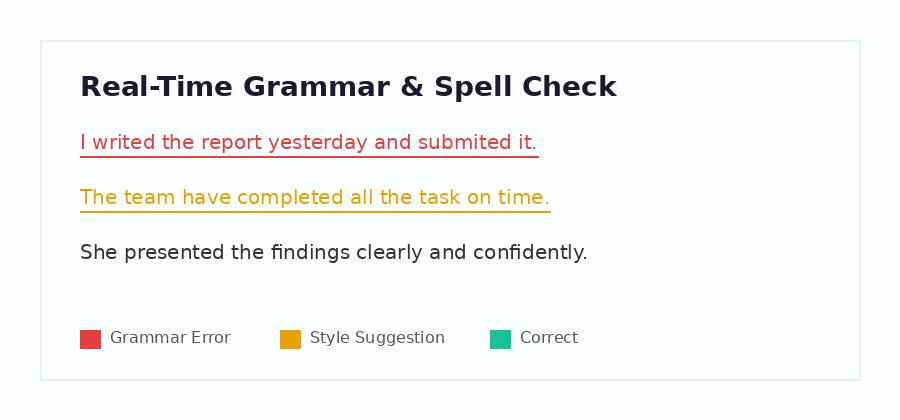
Grammarly flags grammar and spelling issues in real time as you write
My Error-Free Content Workflow with Grammarly
I do not use Grammarly as a final proofreader. I use it as an active part of my writing process from start to finish.
Step 1: Draft First, Fix Later
I write my first draft without stopping. I let the ideas flow without worrying about mistakes. Grammarly runs in the background and flags things as I type, but I ignore the underlines at this stage.
This keeps my thinking clean. Interrupting yourself to fix a comma mid-thought breaks your creative momentum.
Step 2: Set Writing Goals Before Editing
This is one of Grammarly’s most underused features. Before I start the editing pass, I open the Goals panel and set the context for my piece.
I can set the intended audience (general, knowledgeable, or expert), the formality level, the domain (business, academic, creative), and the intent (inform, describe, convince, or tell a story).
Once I set these, Grammarly tailors all its suggestions to fit the context. A suggestion for a casual blog post looks very different from one for a formal white paper.
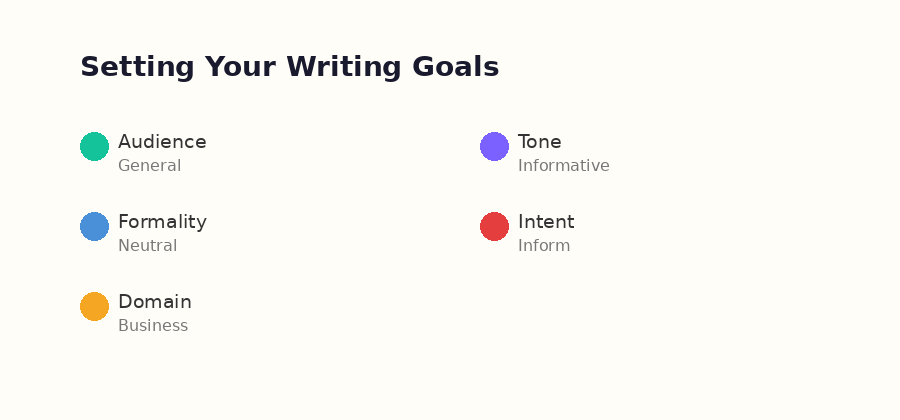
Setting Writing Goals helps Grammarly give context-specific suggestions
Step 3: Work Through the Suggestions
I go through the Grammarly sidebar from top to bottom. I do not accept every suggestion automatically. That is important.
Grammarly sometimes flags stylistic choices that are intentional. Short fragments. Conversational phrasing. Words that technically break a grammar rule but work in context.
I use judgment. If the suggestion makes the sentence clearer, I take it. If it removes my voice, I dismiss it.
Step 4: Check Tone Before Publishing
Once the main edits are done, I look at the tone report. Grammarly shows how my writing is likely to read: confident, friendly, formal, direct, and so on.
If I am writing a client-facing email and the tone reads as ‘aggressive,’ I revisit the phrasing. If it says ‘confident’ and ‘informative,’ I know I am good to go.
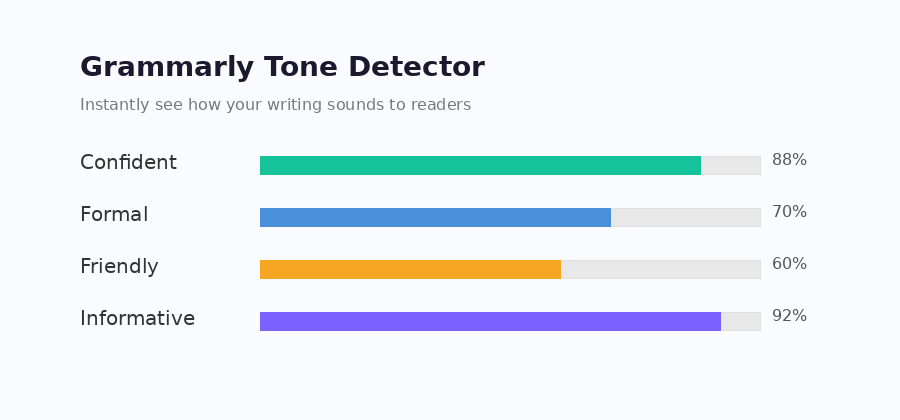
Grammarly’s Tone Detector shows how your writing comes across to readers
The Features I Use Every Day
I want to be specific here because generic lists do not help much. These are the exact features I lean on the most.
Clarity Rewrites
Grammarly Premium has a feature that rewrites full sentences for clarity. When a sentence is technically correct but too wordy, it offers a shorter version. I use this constantly for business writing where concise communication is critical.
Tone Detector
I write a lot of email copy and client communications. The tone detector tells me whether I am coming across as too formal, too casual, or passive. This prevents misunderstandings before they happen.
Consistency Checker
For long documents, Grammarly flags inconsistencies. If I spell a product name two different ways, or switch between Oxford comma usage halfway through, it catches that. This is a lifesaver for long-form content.
Plagiarism Checker
I use this for research-heavy articles. Even when I am paraphrasing, I like to run a plagiarism check to make sure nothing accidentally mirrors a source too closely. It checks against billions of web pages and academic databases.
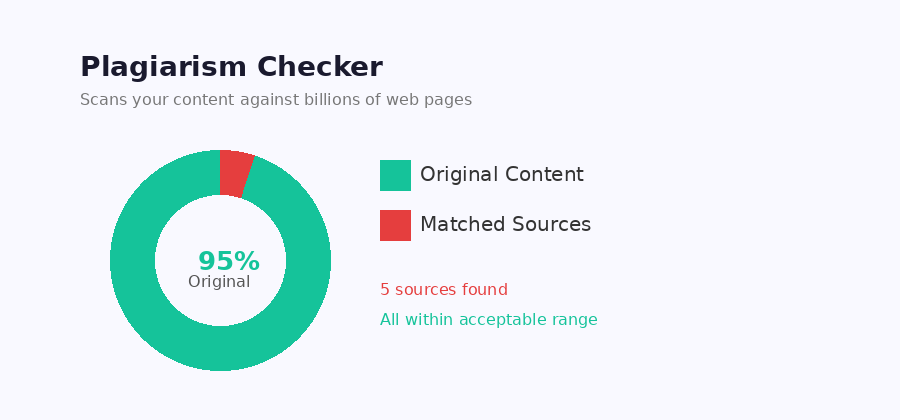
Grammarly’s Plagiarism Checker scans against billions of online pages for originality
What Grammarly Cannot Do
I want to be honest here. Grammarly is powerful, but it has real limits.
- It cannot fact-check your content. It does not know if what you wrote is true or accurate.
- It does not understand deep context. It sometimes suggests changes that technically improve a sentence but reduce nuance.
- It can miss errors in highly technical writing. Specialized jargon in medicine, law, or engineering may confuse it.
- It is not a substitute for a human editor on high-stakes content. I still get a second pair of eyes on anything going to a large audience.
Grammarly is a safety net, not a guarantee. You still need to understand your subject and your reader.
Free vs Premium: What Is Actually Worth It
The free version of Grammarly is useful. It handles spelling, basic grammar, and punctuation well. For casual use, it covers most of what most people need.
The Premium version is where it gets significantly more powerful. The features that matter most to me in Premium are clarity rewrites, the full tone detector, consistency checks, and the plagiarism checker.
If you write professionally or produce content that represents a brand, Premium is worth the cost. If you write occasionally for personal purposes, the free version is enough to start.
My Honest Opinion After Years of Daily Use
Grammarly has made me a faster and more confident writer. Knowing that errors will be caught lets me focus entirely on the ideas when I am drafting. That cognitive relief is real.
It has also helped me develop better habits. After seeing the same types of errors flagged repeatedly, I started making them less often. The tool became a teacher over time.
Is it perfect? No. I do not accept every suggestion and I never will. But the right way to use Grammarly is as a collaborator, not an authority. It raises questions. You decide the answers.
If you are serious about writing, whether for a brand, a business, or your own audience, Grammarly is one of the most practical tools you can add to your workflow.
Frequently Asked Questions
1. Is Grammarly safe to use for confidential writing?
Grammarly has a privacy policy that outlines how your data is handled. For highly sensitive content, you can use Grammarly Business which offers additional privacy controls. I recommend reviewing their data policy before using it for legally sensitive documents.
2. Can Grammarly replace a professional proofreader?
No. Grammarly is excellent for catching common errors and improving clarity, but a professional human proofreader brings contextual judgment, subject expertise, and stylistic insight that no AI tool can fully replicate. Use both for high-stakes content.
3. Does Grammarly work in all languages?
Grammarly currently supports English only. It has no support for other languages at this time. If you write in multiple languages, you will need separate tools for non-English content.
4. How does Grammarly’s AI work?
Grammarly uses a combination of natural language processing and machine learning models trained on large amounts of text. It analyses your sentence structure, word choice, and context to generate suggestions. It does not simply match patterns; it understands grammar rules and stylistic norms at a deeper level.
5. Is the free version of Grammarly enough for everyday writing?
For basic writing tasks like emails, social posts, and casual documents, yes. The free version catches most common spelling and grammar issues. If you write professionally or at volume, the Premium version offers significantly more value through clarity suggestions, tone detection, and plagiarism checking.